

If you’ve been wondering how to create a Pictory.ai video from a blog post, this step-by-step tutorial shows you exactly how to do it — from setup to publishing.
The good news? With Pictory.ai, you can turn any blog post into a professional-looking video in minutes. In this tutorial, I’ll show you exactly how to go from blog post → engaging video, with a little help from Elementor (our go-to website builder).
Why Turn Blog Posts Into Videos?
Before we dive into the steps, let’s talk about why this process is such a game-changer for business owners and creators:
- Double your reach: People who won’t read a full blog post might still watch a 60-second video.
- Better SEO: Embedding a video on your blog keeps visitors on your site longer (Google loves this).
- Content repurposing: One piece of content becomes multiple — blog, video, Pinterest pin, YouTube short, TikTok, Instagram reel.
- Professional without a studio: You don’t need cameras, lights, or editing skills. AI does the heavy lifting.
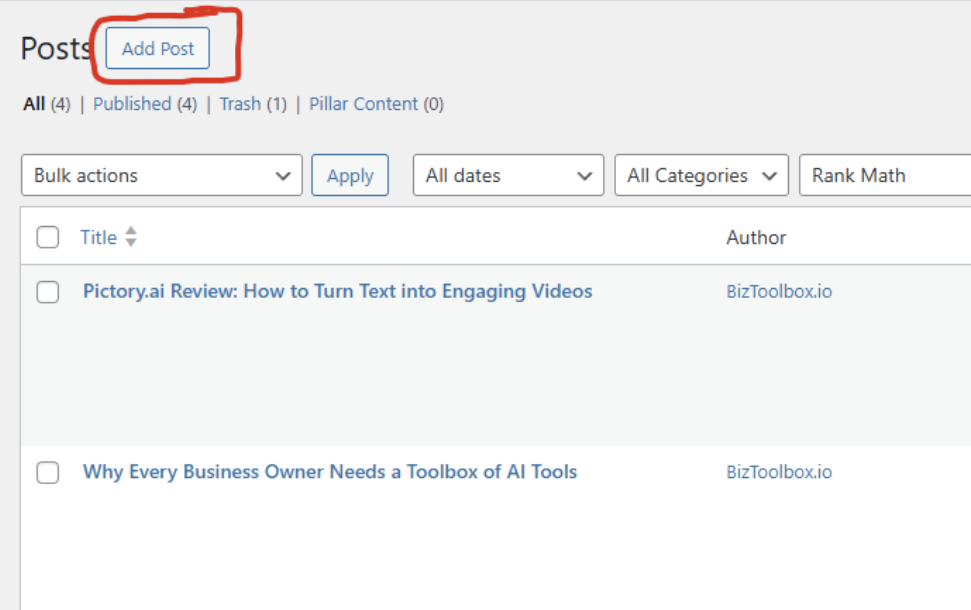
Step 1: Write Your Blog Post
Start by publishing your blog post. We recommend using Elementor Pro because it makes building attractive, conversion-ready pages a breeze. Elementor’s drag-and-drop design tools let you focus on content instead of code, and you can make sure your post is optimized for both desktop and mobile.
👉 Pro tip: add clear headers (H2s, H3s) in your post — Pictory uses these as cues when generating your video scenes.
Step 2: Copy Your Blog Post URL
Once your post is live, simply copy the URL. This is what Pictory will use to automatically grab your content and turn it into a storyboard.

Step 3: Start a Free Trial at Pictory.ai
Head over to Pictory.ai (affiliate link goes here) and start your free trial. Once you’re logged in:
- Choose URL to Video from the dashboard.
- Paste in your blog post link.

Step 4: Watch the Magic Happen
This is where the AI gets to work:
At this point, Pictory.ai will ask you what type of video you are making. (Marketing, Informative, etc.). Then it will ask for any additional information you might want to add. Then, these next few things happen:
- Pictory scans your post and breaks it into bite-sized video “scenes.”
- It matches text with relevant stock footage, images, and background music.
- You’ll get a full preview in just a few minutes.
At this point, you can customize:
- Swap visuals (upload your own screenshots or product images).
- Edit text overlays (perfect for emphasizing key points).
- Choose a voiceover (AI narration or upload your own).
Step 5: Publish and Share Everywhere
Once you’re happy with the video, download it and:
- Embed it in your original blog post (Elementor makes this simple).
- Upload it to YouTube, TikTok, or Instagram Reels.
- Create a Pinterest video pin (just like the one that brought you here).
Now you’ve transformed one piece of content into a multi-channel asset.
Final Thoughts
Creating high-quality videos used to be expensive, time-consuming, and complicated. With tools like Elementor and Pictory.ai, you can streamline the process — write once, publish everywhere, and maximize your content’s reach.
If you haven’t tried it yet, start a free trial with Pictory.ai today. What’s the worst that can happen? You’ll end up with a video version of your blog post in just a few clicks.
What else can Pictory.ai do?
Beyond turning blog posts into videos, Pictory.ai also gives you powerful options for other types of content repurposing. You can take long-form videos, like webinars or podcasts, and instantly generate short, shareable clips perfect for social media. There’s also a text-to-video tool for building professional explainer videos from scratch, plus automatic captioning and transcription to make your videos more accessible. In short, Pictory isn’t just a blog-to-video converter — it’s a full content creation and marketing toolbox designed to help you scale your message across every platform.
Check out our Tools Page for more tips and ai tools!