
Disclosure: some links on this page are affiliate links. If you buy through them, I may earn a commission at no extra cost to you. See my affiliate disclaimer. Prices checked on November 17, 2026.
The Surfer Content Editor is the part of Surfer SEO where you actually write. You enter a keyword, Surfer studies the pages that already rank for it, and the editor gives you live guidelines: which terms and facts to cover, how long the page should be, and a Content Score from 0 to 100 that updates as you type. This guide walks through every step, from creating your first editor to exporting a finished page to WordPress.
I run an agency and use Surfer every day for home pages, service pages, product pages and blog posts across a long list of client sites. This guide covers the settings that matter and the ones you can skip. If you’re still deciding whether to buy Surfer at all, start with my Surfer SEO review and pricing breakdown.
What Is the Surfer Content Editor?
According to Surfer’s own documentation, the Content Editor is a tool that helps you write and optimize articles by comparing your draft against top-ranking pages. It doesn’t write the page for you unless you ask it to. You keep control of the copy, and Surfer does the competitor research.
Each Content Editor is built around one main keyword (you can add up to 20 related keywords per editor). It gives you three live scores: an overall Content Score, an SEO Score for classic Google ranking factors, and an AI Search Score for how well the page is written for AI answers like ChatGPT and Google’s AI Overviews.
The editor does two jobs. It shows what a complete page on this topic covers, and it checks your draft against that in real time, so you have a clear target for when a page is done.
What You Need Before You Start
- A Surfer account. New accounts get a 7-day trial with Pro-plan access, but you pick a plan and enter a card at checkout, and the trial converts to that paid plan unless you cancel before day 7. The trial is for new accounts only, and a card already used on a Surfer account isn’t eligible.
- One clear main keyword per page. Surfer’s docs say a single main keyword is usually enough.
- Optional: Google Search Console connected to Surfer, which the internal-linking step needs.
- Optional: the Surfer for Google Docs Chrome extension, if your team writes in Google Docs. The pricing page lists the Google Docs integration on Standard and above.
Surfer explains the trial terms in its help article on how the trial works. Set a calendar reminder for day 6 if you’re only testing.
How to Use the Surfer Content Editor, Step by Step
This follows Surfer’s writing workflow guide. Surfer updates its interface often, so a button name may differ slightly from what you see, but the steps stay the same.
Step 1: Create a new Content Editor
- Open Content Editor in the left menu and select New Content.
- Enter your main keyword, plus any related keywords that the same page should answer.
- Pick the country and language you want to rank in, the device type (desktop or mobile), and a folder if you group work by client.
- Create the editor. Surfer’s guide says the competitive analysis takes a couple of minutes.
Next, choose how to start. You can have Surfer AI generate the outline and draft, or write the page yourself and have Surfer optimize it afterward. Both work. We use Surfer AI and then adjust the optimized content, but writing first is a good option if you’d rather start from your own copy. If you use Surfer AI, its custom instructions guide says you can add up to 5,000 characters of instructions, including URLs for it to reference.
If you already have a live page, import it from its URL instead. Surfer pulls the published content into a new editor with guidelines.
On client sites, I have Surfer AI write the first draft and edit from there. With Google Search Console linked, the draft draws on that data and is written around my target keywords. Then I have Surfer optimize the page for SEO and AI search, and it gives a score for each. I use the same approach for home pages, service pages and blog posts. My instructions to Surfer’s built-in AI assistant say what kind of page it is, and the tone adjusts from there.
Step 2: Clean up your competitor list
Surfer builds every recommendation from the competitors it picks, so this step decides whether your guidelines are any good. By default, the Customization Panel guide says it picks five pages from the top ten with the highest Content Score.
Open the settings (the gear icon) and look at that list. Remove pages that don’t match your search intent or format: Wikipedia, YouTube, forums, or a giant brand you’d never outrank anyway. If you’re writing a service page, benchmark against service pages, not 5,000-word guides. Surfer says you need at least three unique competitors from different domains for the guidelines and score to calculate properly, and it recommends keeping at least five similar pages.
Changing competitors changes your word count, terms and maximum Content Score. That’s fine. A slightly lower possible score built on the right competitors beats a high score built on the wrong ones.
Step 3: Review the terms and content structure
Still in the Customization Panel, check two more things. Content structure sets the target number of words, headings, paragraphs and images. Terms lists the words and phrases Surfer wants you to use, sorted with the most relevant at the top.
Untick any term that doesn’t belong on your page, such as a competitor’s brand name or a city you don’t serve. You can also mark terms for headings, blacklist terms so they never show up again, and bulk-import your own secondary keywords. If a single competitor is a huge word-count outlier, lower the word target rather than padding your page to match.
Step 4: Build your outline
Open the Research & Create Outline tab. You can generate an outline from a template (Surfer recommends its SERP-based outline), copy sections from the top competitors’ outlines, and add notes for writers. The generated outline drops straight into the writing area with relevant terms already in the headings.
Treat the outline as a starting point. I’d cut any section that’s only there because competitors have it and doesn’t help your reader, and add the section only you can write, like your process, your pricing, or your local service area.
Step 5: Write (yourself or with Surfy)
Now write under each heading. The Guidelines panel on the right updates as you type, showing your word count, headings, paragraphs and images against the target, plus which terms you’ve covered.
If you get stuck, highlight text and select Ask Surfy, or type /ask. Surfy is Surfer’s built-in AI assistant. According to Surfer’s Surfy guide, it can rephrase, expand or summarize a section, format text into lists, add links or examples, and look up information on a topic. It uses its own pool of AI tokens, separate from your other AI features.
Write for the reader first. Google’s guidance on creating helpful, reliable, people-first content is worth reading once, and Surfer’s own guide says content written for real people tends to perform better. A sentence that reads naturally beats a sentence stuffed with one more term.
Step 6: Push your Content Score into the green
Open Write & Optimize. Surfer’s guide says to start with AI Search → Facts, the facts top results cover, because its research found fact coverage correlates most with rankings. Add missing facts by hand or with Surfy.
Then work down the terms list, most important first. Auto-Optimize adds missing terms in one click: you review the suggestions in the side panel, compare them with your original, then select Save & Close or decline the changes. Each run counts against your plan limits, even if you decline everything. Surfer’s pricing page lists 1-click Content Optimization on Standard and above.
I run Auto-Optimize on every page, because Surfer’s system is built to optimize for both SEO and AI search. The trade-off is tone. Optimized copy can come out stiff: on one real estate client’s page, it read like a census report. Most of the time I rewrite parts of it so it sounds natural and inviting, and it often takes a few passes of edits before a page is ready.
Step 7: Add internal links
Internal links help Google find and understand your pages. Open Internal Links in the guidelines panel, choose the Search Console property where the page will live, and request link suggestions. You can add your own pages and edit the anchor text, then insert the links and review them before you accept. Search Console must be connected, and Surfer’s internal linking guide says semantic suggestions also need a Content Audit project for the domain.
Surfer’s pricing page lists 1-click internal linking on Pro and above. On lower plans, do it by hand: link to related pages using natural anchor text, and put your most important internal link in the first paragraph, as Surfer’s guide recommends.
Step 8: Check for plagiarism and share the draft
Before you publish, run Surfer’s plagiarism checker. Surfer’s docs say it needs at least 50% of the suggested word count and has a 10-minute wait between checks, and the pricing page lists it on Standard and above. If you work with writers or clients, share the editor with a link. Surfer says shared links don’t need a Surfer account and can be view-and-comment or full editing.
Step 9: Publish or export
The Publish or Export tab suggests a meta title and description; make sure your main keyword is in both. Then move the content into your CMS (the pricing page lists the WordPress integration on Standard and above), use a short slug with your keyword in it, and hit Mark as done.
How to Read the Content Score (and What Number to Aim For)
Surfer’s Content Score guide breaks the 0–100 score into three bands. Below 33 means the page isn’t optimized enough. 33 to 66 means the foundations are there. Over 66 means the page is ready to compete.
| Content Score | What Surfer says it means | What to do next |
|---|---|---|
| 0–32 | Not optimized enough | Cover more of the important terms, facts and topics |
| 33–66 | Reasonably well optimized, room to improve | Work through missing facts and top terms, add images with alt text |
| 67–100 | Ready to compete | Stop chasing points; aim for 10–20 above your competitors and polish for readers |
The score combines an SEO Score (terms, topical coverage and structure compared with top pages) and an AI Search Score (fact coverage and how quickly the page answers the main question). Surfer says it’s usually impossible to reach 100 and that over-optimizing can hurt. Its advice is to land 10 to 20 points above your competitors.
Surfer’s tips for raising the score: use the most important terms in headings as well as body text, don’t overuse any single term, add images with descriptive alt text, cover the relevant facts, and answer the reader’s main question early in the page.
Tips for Getting More Out of the Content Editor
- One page, one intent. If two keywords need different answers, they need two editors. Each editor counts as one document, so plan your allowance around pages, not keywords.
- Fix the competitor list before you write. Guidelines built on the wrong competitors send you chasing terms that don’t fit your page.
- Use folders by client or site. Surfer lets you group editors into folders, and deleting a folder doesn’t delete the documents inside it.
- Refresh old pages, too. Import a live URL into a new editor to see what it’s missing, then update it rather than writing a new post.
- Add your own experience. Surfer’s guide suggests adding a paragraph or two with your own point of view. It’s also the part no competitor can copy.
- Match the export to who’s reading it. Surfer has several export options, and I use a mix of them. Exports that show the H1, H2s and body text are useful for my content writers and SEO team, while a text-only export is easier for clients to review before a page goes live.
Surfer Content Editor: Pros and Cons
Pros
- Guidelines come from the pages that actually rank for your keyword, not a generic checklist
- Live Content Score with separate SEO and AI Search scores
- Surfy and Auto-Optimize work inside the editor, so you don’t switch tools
- Shareable links work for writers and clients without a Surfer account
- WordPress and Google Docs integrations on Standard and above
Cons
- No free plan; the trial needs a card and converts to paid unless you cancel
- Each editor uses one document from a yearly allowance on annual plans
- 1-click optimization, plagiarism checks and 1-click internal linking aren’t on the cheapest plan
- Easy to over-optimize if you chase a perfect score
- Guidelines are only as good as the competitor list you leave in place
Which Surfer Plans Include the Content Editor Features
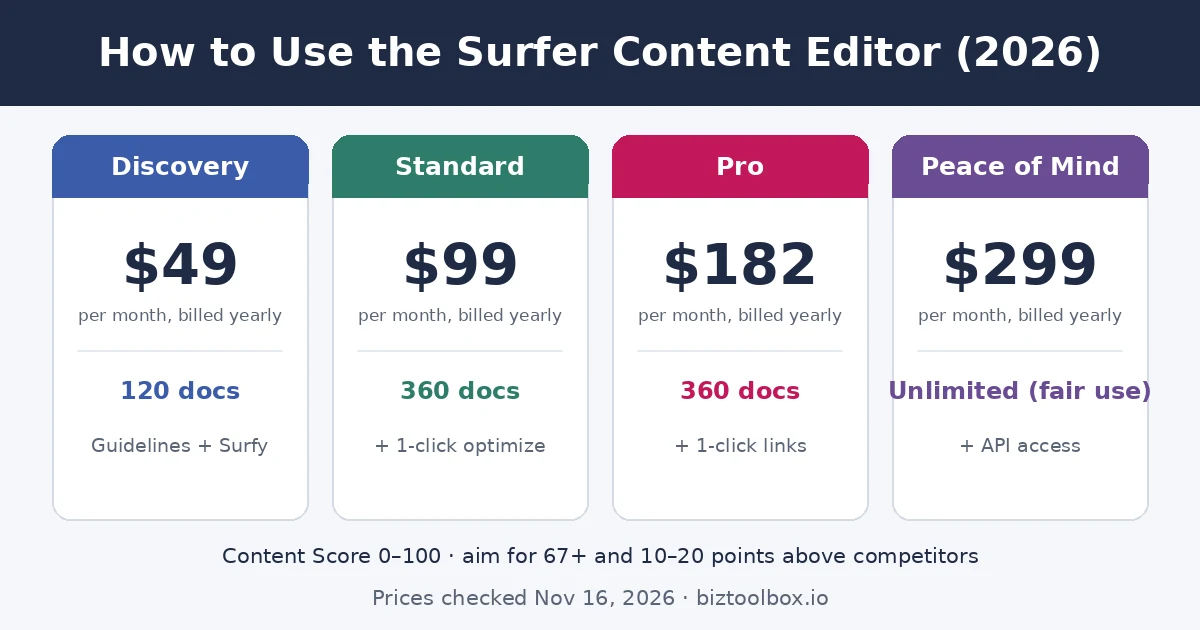
Every paid Surfer plan includes the Content Editor, its guidelines, the Content Score and Surfy. What changes between plans is how many documents you can create and which one-click extras you get. Here’s what Surfer’s official pricing page lists for the Content Editor. For the full pricing breakdown, see my Surfer SEO review.
| Plan | Billed yearly | Billed monthly | Documents (yearly billing) | Documents (monthly billing) | Content Editor extras listed on the plan card | Team seats |
|---|---|---|---|---|---|---|
| Discovery | $49/mo | $59/mo | 120 a year | 10 a month | AI SEO guidelines, Surfy and Humanizer | 1 |
| Standard | $99/mo | $119/mo | 360 a year | 30 a month | 1-click Content Optimization, plagiarism checker, WordPress and Google Docs integrations, team collaboration | 3 |
| Pro | $182/mo | $219/mo | 360 a year | 30 a month | Everything in Standard plus 1-click internal linking, templates and custom voices, content ideas and coverage gaps, Contentful integration | 5 |
| Peace of Mind | $299/mo | $359/mo | Unlimited (fair use) | Unlimited (fair use) | Everything in Pro plus advanced SERP analysis, API access and Zapier integration | 10 |
Surfer’s pricing FAQ says yearly plans are charged upfront for the full year and save up to 17% compared with monthly payments.
Documents are the limit that matters for the Content Editor. Surfer’s docs say every Content Editor you create counts as one use against your plan’s limit. On a yearly plan, the pricing FAQ says those credits reset yearly, so 120 documents on Discovery is 120 for the year. Monthly billing gives you 10 a month on Discovery and 30 a month on Standard or Pro.
Which Should You Choose? Discovery, Standard or Pro
If you’re buying Surfer mainly for the Content Editor, here’s how I’d pick a plan based on the pricing page.
Choose Discovery if…
- You write for one site and publish fewer than about 10 pages a month (120 documents a year).
- You’re happy to optimize terms by hand and add internal links yourself.
- You want the cheapest way into the editor at $49/mo billed yearly.
Choose Standard if…
- You want 1-click Content Optimization and the plagiarism checker.
- You need more volume (360 documents) or up to 3 team seats.
- You publish to WordPress or write in Google Docs and want the integrations listed on this plan.
Choose Pro if…
- You manage several sites or clients and want 1-click internal linking.
- You want custom templates and custom voices to keep many writers consistent.
- You also care about AI search visibility tracking (50 prompts refreshed daily).
Running an agency? Seats and documents decide it. Standard gives you 3 seats and Pro gives you 5, both with 360 documents a year on yearly billing. Peace of Mind removes the document cap (fair use) and gives you 10 seats.
If Surfer’s price is the sticking point, my Surfer SEO alternatives post compares cheaper content editors, and my Surfer SEO vs Clearscope comparison goes plan by plan against its closest rival. For more tools I cover, see the tools page.
Frequently Asked Questions
Is the Surfer Content Editor free?
No. There’s no free plan. New accounts can try it through a 7-day trial with Pro-plan access, but you choose a plan and enter a card at checkout, and you’re charged when the trial ends unless you cancel first. My Surfer SEO review covers the trial in more detail.
Does every Content Editor use up a credit?
Yes. Surfer’s docs say every successfully created Content Editor counts as one use against your plan’s document limit. On yearly billing, Discovery includes 120 documents a year and Standard and Pro include 360. On monthly billing, it’s 10 and 30 a month. The pricing FAQ says yearly allowances reset yearly.
What is a good Content Score in Surfer?
Surfer says anything over 66 means your content is ready to compete. Instead of chasing 100, aim for 10 to 20 points above your top competitors, and keep the writing natural.
Is there a Surfer extension for Google Docs or WordPress?
Yes, on Standard and above. Surfer’s docs describe a Google Docs extension you can connect from the Content Editor’s Share menu. The pricing page lists WordPress and Google Docs integrations on Standard, adds Contentful on Pro and Zapier on Peace of Mind. The Discovery plan card doesn’t list any integrations.
Can Surfer write the article for me?
Yes. When you create an editor, you can have Surfer AI generate the outline and draft, and Surfy can rewrite or expand individual sections. Edit every AI draft and add your own experience before you publish.
Can I optimize a page that’s already published?
Yes. Import the page from its URL when you create a Content Editor. Surfer pulls in the live page and builds guidelines for it, so you can see what’s missing and update the page.
Get My Free Agency Efficiency Stack
The Content Editor is one tool in my agency’s stack. I put the full set of tools and workflows into a free guide, the Agency Efficiency Stack. Get the free Agency Efficiency Stack here, and if you’re ready to try the editor yourself, start your Surfer SEO trial.
For more on building a lean set of tools, read why every business owner needs a toolbox of AI tools.